How to Read Wikipedia in Another Language (Side by Side)
The French, Japanese or Spanish Wikipedia article on a topic is often a different article, not a translation of the English one. Here is how to read it with the original and your language together.
Most people only ever read Wikipedia in one language. That is a bigger loss than it sounds, because the versions are not translations of each other. Each language edition is written by its own community, so the French article on a French dish, the Japanese article on a Japanese company or the Spanish article on a Latin American election usually has details, sources and photos the English one never got.
The "Languages" menu at the top of every article shows how many editions exist. The croissant article below links to 67 of them. This guide shows how to read one of those versions with its original text and your own language on the same page.
Why not just switch to the English article?
You can, and for a quick fact it is the right move. But switching has three problems:
- The English article may be short or missing. Local topics such as regional history, small towns and national politicians are often covered in depth only in the local language.
- It answers a different question. The English article on a regional dish is written for a global reader. The local article is written by people who cook it, so it covers history, regional variants and local sources.
- You lose the original wording. If you are quoting, citing or studying the language, the original sentence matters.
Reading the local edition with a translation under each paragraph keeps the original source and makes it readable.
What it looks like
Here is the French article Croissant (viennoiserie) before and after one click. The screenshots were taken on 3 November 2026 with the free Google provider and English as the target language.
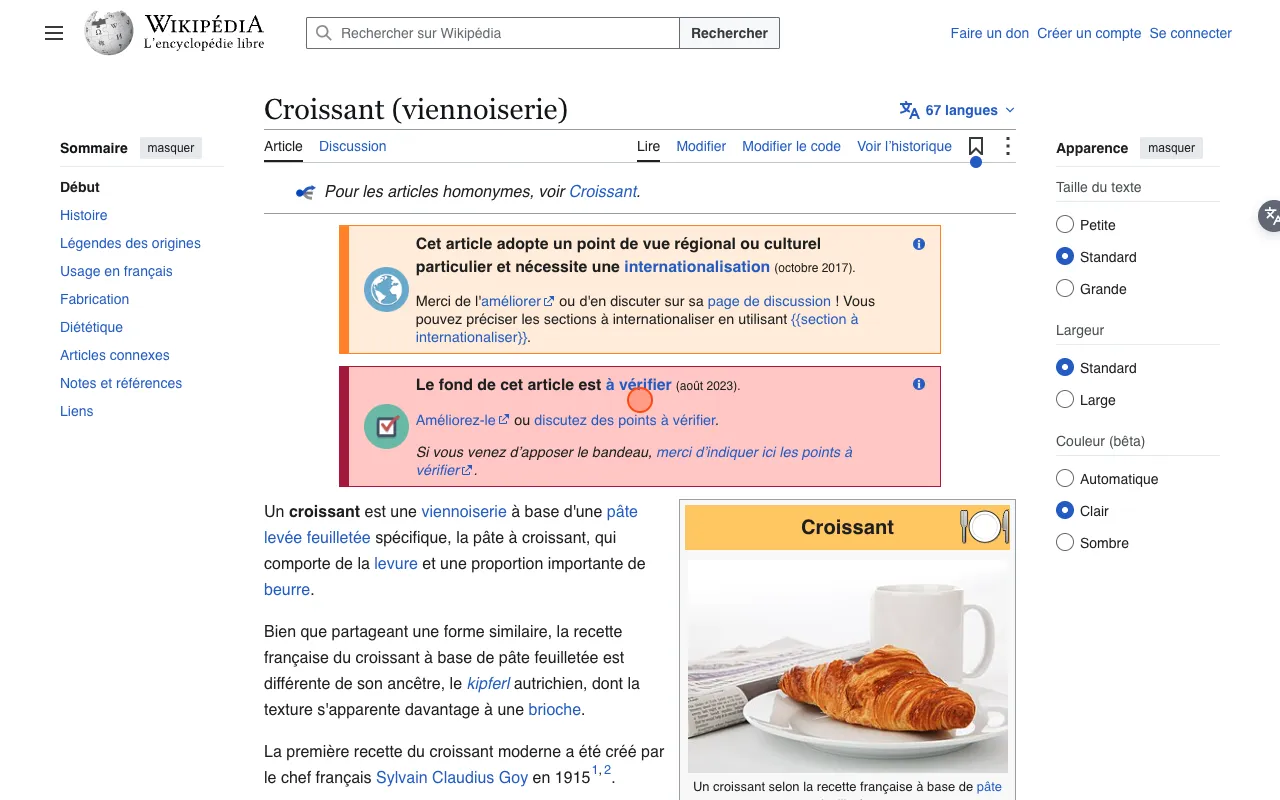
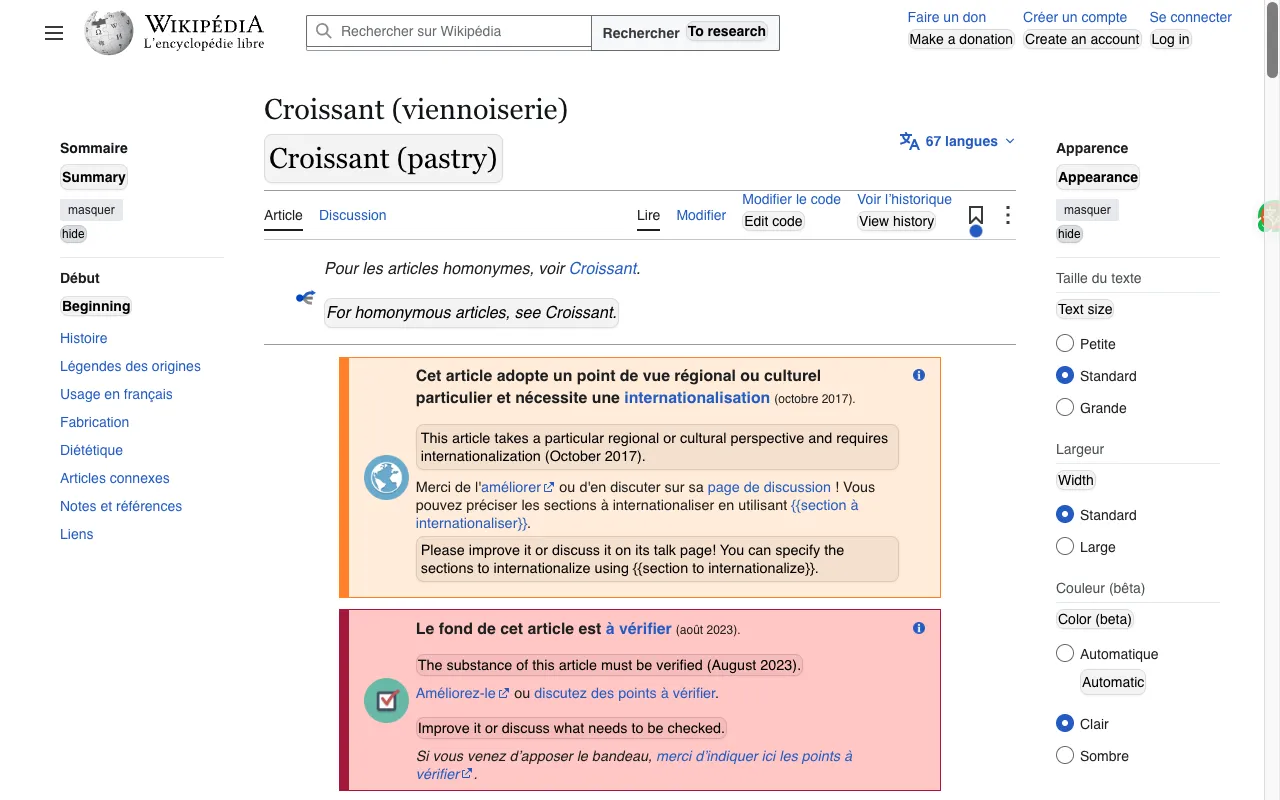
Each block of French keeps its place and gets its English version right below it: the title ("Croissant (pastry)"), the maintenance banners at the top and each paragraph of the article. Links in the original text still work, so you can follow a French reference or jump to another article and translate that one too.
Step by step
- Install BothLang from the download page. It works in Chrome, Edge and Firefox.
- Open the article in English Wikipedia, then pick the edition you want from the Languages menu at the top right of the title. Or go straight to it, for example
fr.wikipedia.org,ja.wikipedia.orgores.wikipedia.org. - Click the floating BothLang button on the right edge of the page. Its tooltip names your target language, for example "Translate page to English".
- Scroll. Paragraphs are translated as they come into view, so long articles do not have to load all at once.
To change the target language, or to switch from bilingual to translation-only, open the BothLang popup from the browser toolbar. BothLang remembers the site after the first click, so the next Wikipedia article in that language is translated when it opens.
Tips for getting more out of it
Compare editions on contested topics. Wars, borders and national figures are often described differently in different languages. Open two editions in two tabs, translate both, and compare what each one emphasises and which sources it cites.
Use the references section. Local editions often cite local newspapers, books and archives you will not find through the English article. With the reference titles translated, you can tell which ones are worth opening.
Learn vocabulary in context. If you are learning the language, keep bilingual mode on and read the original first, then check the translation under it. Wikipedia's neutral, factual style is easier than news or social media, which makes it a good next step after textbooks.
Translate a single paragraph instead of the page. For one sentence, hover over the paragraph with the hover-translation shortcut, or select the text, instead of translating the whole article. See hover translation.
Limits worth knowing
- Machine translation is good for understanding an article, but you should not quote it as the source. Quote the original sentence and use the translation to understand it.
- Wikipedia's own menus and sidebar are translated along with the article, so the page gets busier. Collapse the sidebars, or switch to translation-only mode, if that gets in the way.
- Tables and infoboxes are translated cell by cell. Short labels such as "Origin" or "Ingredients" are fine, but very short cells can lose context.
- Everything you translate with the free Google or Edge providers goes to that provider. BothLang's AI provider needs an account. See how BothLang handles privacy.
Try it
Pick a topic you know well in English, open it in the language of the country it comes from, and translate it. Most of the time you will find something the English article left out.
Related guides
Related Articles
How to Translate Wikipedia From Arabic to German (Step-by-Step)
Read Arabic-language Wikipedia content in German while keeping the original Arabic visible, with a bilingual workflow you can reuse on any site.
How to Translate Wikipedia From Arabic to English (Step-by-Step)
Read Arabic-language Wikipedia content in English while keeping the original Arabic visible, with a bilingual workflow you can reuse on any site.
How to Translate Wikipedia From Arabic to Spanish (Step-by-Step)
Read Arabic-language Wikipedia content in Spanish while keeping the original Arabic visible, with a bilingual workflow you can reuse on any site.
How to Translate Wikipedia From Arabic to French (Step-by-Step)
Read Arabic-language Wikipedia content in French while keeping the original Arabic visible, with a bilingual workflow you can reuse on any site.