How to Translate Wikipedia From Arabic to English (Step-by-Step)
Wikipedia is a global encyclopedia, and its Arabic-language edition is often the most complete reference on a topic. If English is your stronger reading language, the friction is familiar: copy the article into a translator, lose the layout, or read slower than you would like.
Bilingual translation removes the trade-off. The Arabic article stays and the English meaning appears right beside it, so you can read the detail you need and still check the source language for precision.
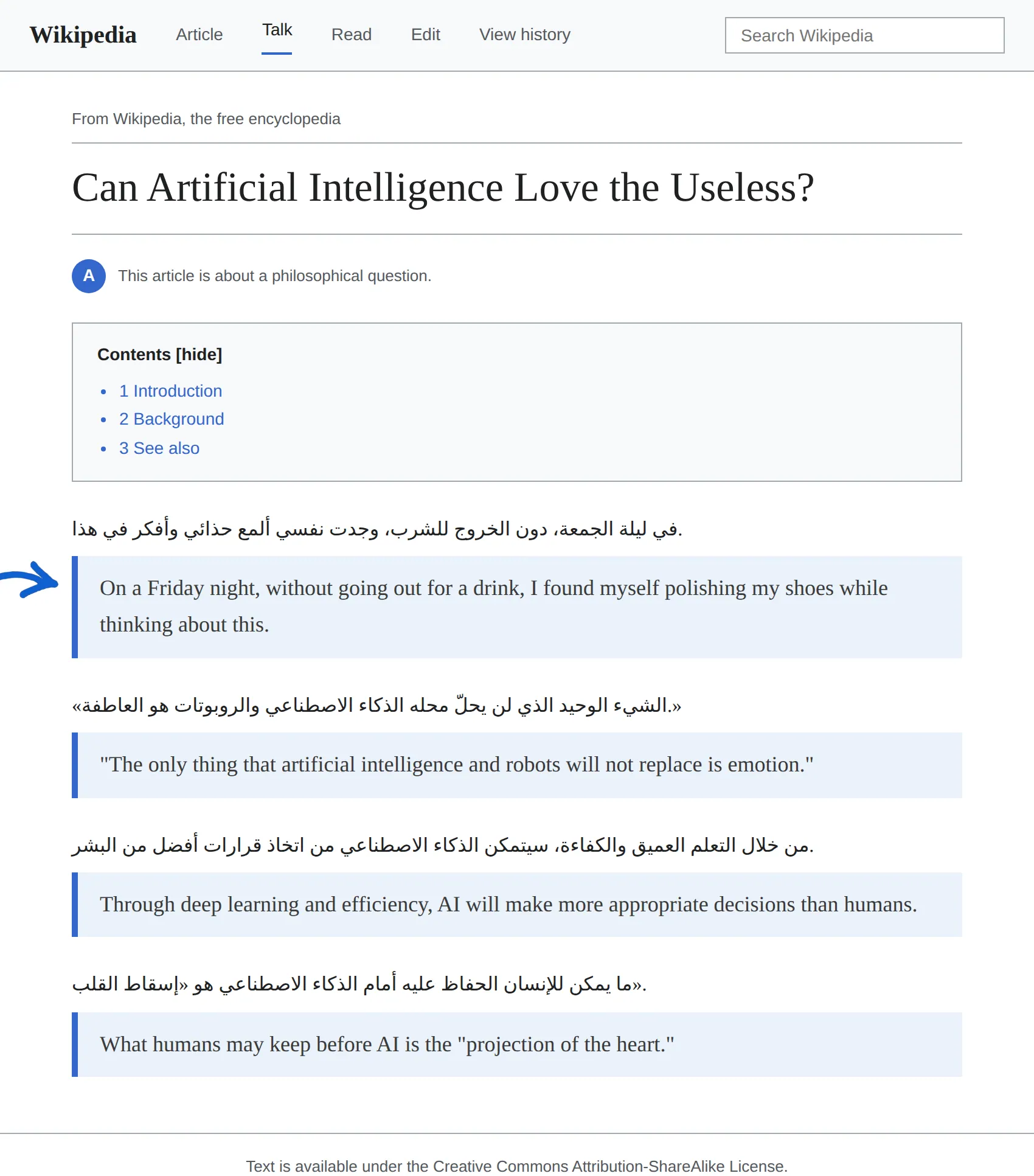
Demo note: the screenshots below are built in a real Wikipedia article layout to show exactly how BothLang displays a bilingual page — the original paragraph on top and the translated text directly beneath, with a hand-drawn arrow pointing at the translation.
What you need
- BothLang installed in Chrome, Edge, or Firefox — see the download page.
- The extension pinned to your toolbar.
- A Arabic Wikipedia article open in a tab.
Step 1 — Open the article
Open the Arabic Wikipedia article you want to read.
Step 2 — Set English as your target
Click the BothLang icon. Set Translate into to English (en) and Page display to Bilingual.
Step 3 — Translate the page
Click Translate Now. BothLang places an English translation directly beneath each Arabic paragraph, leaving the Arabic intact. A hand-drawn arrow marks the first translated paragraph.
Step 4 — Switch reading modes
- Bilingual — source and translation together.
- Translation only — fastest.
- Original only — back to clean Arabic.
The short version
- Install and pin BothLang.
- Open a Arabic Wikipedia article.
- Set Translate into: English, Page display: Bilingual.
- Click Translate Now.
- Read the English with the Arabic original underneath.
Try it on your next Arabic Wikipedia article.