How to Translate Medium From Japanese to English (Step-by-Step)
Japanese-language writing on Medium is rich and easy to find. A thoughtful essay, a product teardown, or an interview bubbles up in your feed, and then the familiar question appears: translate it elsewhere and lose the layout, or read slower than you would like.
This guide covers the third option — translate the page in place with bilingual translation. The Japanese stays and the English meaning appears right beside it, so you can follow the argument quickly, then check the original for any word, name, or phrase you are unsure about.
Demo note: the screenshots below are built in a real Medium article layout to show exactly how BothLang displays a bilingual page — the original paragraph on top and the translated English directly beneath it, with an arrow pointing at the translation. The workflow is identical on Medium and most blogs because BothLang works on whatever page you are viewing.
What you need before you start
- BothLang installed in Chrome, Edge, or Firefox. The download page walks through the install.
- The extension pinned to your toolbar for one-click access.
- A Japanese article open in a tab.
Step 1 — Open the Japanese article
Pick the page you want to read. The example translates a Japanese essay about artificial intelligence and the value of "waste."
Step 2 — Set English as your target language
Open the BothLang popup from the toolbar.
- Translate into — choose English (en).
- Page display — choose Bilingual so the Japanese and the English appear together.
Step 3 — Translate the page in place
Click Translate Now. BothLang places an English translation directly beneath each Japanese paragraph. Nothing is removed — the Japanese stays, and an arrow marks each translated paragraph.
The result is a bilingual page:
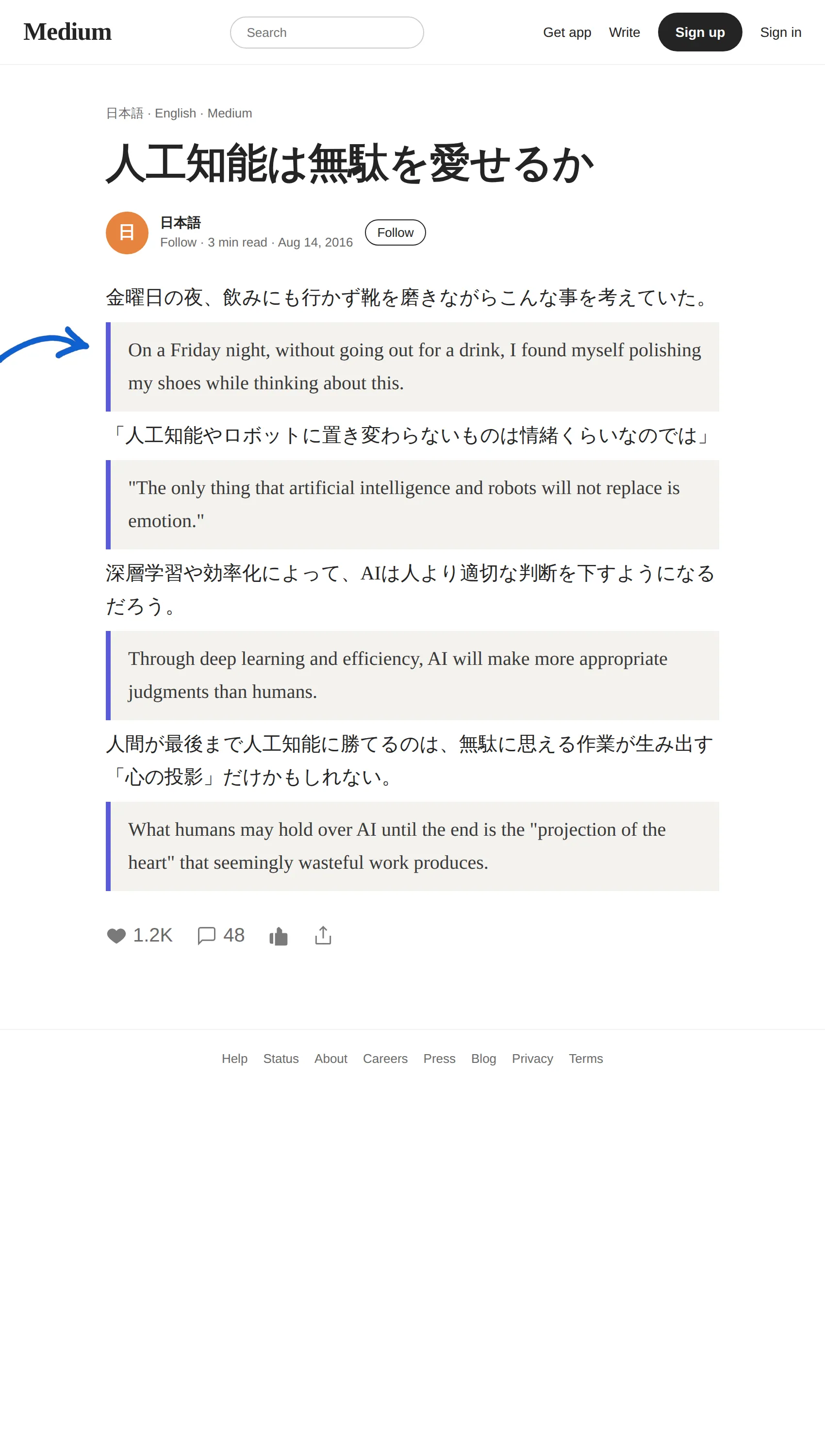
You can read the essay in English while keeping the original Japanese in view, which makes follow-up checks one glance away.
Step 4 — Adjust the reading mode
If the bilingual layout feels busy for a long read, switch modes without re-translating:
- Bilingual — source and translation together, best for learning and verification.
- Translation only — fastest when you only need the meaning.
- Original only — a clean return to the source.
Step 5 — Inspect one sentence with hover translation
A single tricky passage is easier to handle than the whole page. Use hover translation: press your shortcut (Shift, Alt, or Ctrl) and point at a paragraph. Only that passage is translated.
A two-pass method for careful reading
For something you want to study closely:
- First pass in translation-only to grasp the argument.
- Second pass in bilingual to connect the English to the original Japanese.
Why keep the Japanese source visible?
Two practical reasons:
- Accuracy. Names, product terms, and quoted lines can be translated loosely. The original beside the English lets you verify.
- Learning. A polished Japanese paragraph under its English meaning is a natural way to build vocabulary in context.
The short version
- Install BothLang and pin it.
- Open a Japanese article.
- Set Translate into: English and Page display: Bilingual.
- Click Translate Now.
- Read the English while keeping the Japanese original underneath.
Try it on your next Japanese article or newsletter.